Lesson New
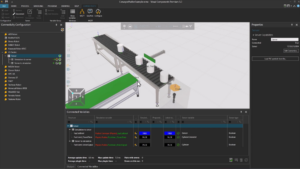
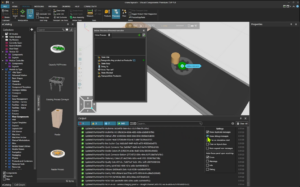
Learn the basics of the FactoryLens Add-on
CONNECTIVITY | CONNECTING TO SERVER
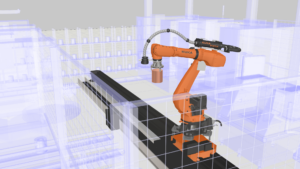
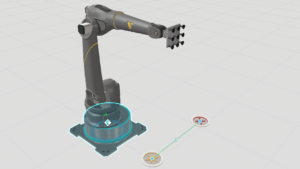
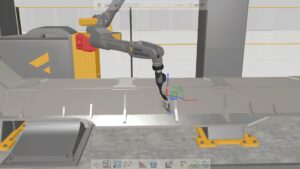
In this hands-on tutorial, you will learn how to establish a live connection between a Nachi robot and Visual Components using the Connectivity tab and the Nachi FD on Desk environment. The lesson walks you through preparing the simulation layout for connectivity, postprocessing the robot program, configuring the VRC, and finally driving the robot in Visual Components with the VRC. By the end, you will understand how to bridge virtual simulation with real robot control, enabling monitoring and verification.
Note: that to complete this exercise you will need the following:
Nachi’s FD on Desk III simulation software
Software Version: 5.1 or higher
Product: Premium or Premium OLP
0 answers.
Connectivity
In this video you will learn how to use OPC UA to connect Visual Components
Connectivity
Learn how to set up Visual Components with Allen-Bradley PLC
Connectivity
Learn how to connect Visual Components with an Epson Virtual Robot Controller.
Connectivity
Learn how to use LS Electric connectivity plugin
Connectivity
Learn how to use the MQTT Client to connect to an MQTT broker.
Connectivity
Learn how to connect a Denso robot to simulation.
Connectivity
Learn how to use connectivity plugin for Techman robots.
Connectivity
Learn how to use MELFA robot connectivity plugin.